
Skip to content
ReviewScanGo
  • Help Center
ReviewScanGo

Getting Started

9
  • Start Here: How to Launch Your First Campaign Funnel (Overview)
  • Review Compliance
  • What Is ReviewScanGo and How the Smart Funnel Works
  • What Happens After a Customer Scans the QR Code
  • Verified vs Unverified Reviews Explained
  • Product Reviews vs Seller Feedback
  • Supported Platforms
  • Supported Countries & Marketplaces
  • Supported Languages

Campaign & Smart Funnel Setup

9
  • How to Create a Campaign
    • Adding Products
    • Creating Promotions
    • Creating Campaigns
    • Campaign Funnel Analytics
  • Testing & Activation
    • How to Test Your Campaign Funnel
  • QR Code Management
    • Downloading & Printing QR Codes
    • Emailing or Sharing Your Campaign Link
    • Using Existing Insert Cards
  • Campaign Analytics
    • Campaign Funnel Analytics

Promotions & Coupon Codes

10
  • Promotion Types
    • Gift Cards
    • eGift Cards
    • Discount Code or Promo Code or Virtual Gift Card
    • Free Products
    • Digital Download
  • Coupon Code Management
    • Entering Coupon Codes
    • How to Bulk Upload Coupon Codes
  • Gift Cards & Promo Setup
    • How to Create an Amazon Promotion in Seller Central
    • Where to Get Gift Cards or Promo Codes
    • How to Buy and Process eGift Cards

QR Codes

4
  • Downloading & Printing QR Codes
  • Emailing or Sharing Your Campaign Link
  • Using Existing Insert Cards
  • How to Test Your Campaign Funnel

Insert Cards & Compliance

4
  • Where to Get Insert Cards Made
  • Using Existing Insert Cards
  • Review Compliance
  • Amazon Compliant Insert Cards

Claims Center

2
  • How the Claims Center Works
  • How to Buy and Process eGift Cards

Review Insights

8
  • Overview
  • How Review Insights Works
  • Understanding AI Scores & Analysis
  • Overview Dashboard
  • Customer Feedback
  • Opportunities
  • Review Explorer
  • Frequently Asked Questions

Branding & Advanced Features

2
  • How to White Label Your Smart Funnel
  • How to Add a Meta Pixel

Account & Billing

3
  • Upgrade or Change Your Subscription Plan
  • Plan Limits Explained
  • What Happens When You Downgrade Your Plan

Troubleshooting & Support

4
  • Campaign Not Active
  • QR Code Scans But Funnel Doesn’t Load Properly
  • Running Out of Coupon Codes
  • Contact Support
View Categories

How to Bulk Upload Coupon Codes

0:00 / 2:09
  • View as Markdown Open this page as plain Markdown (opens in a new tab)
  • Open in ChatGPT Ask questions about this page (opens in a new tab)
  • Open in Claude Ask questions about this page (opens in a new tab)
  • Open in Google AI Studio Ask questions about this page (Google account required) (opens in a new tab)

Entering bulk coupon codes is only available if you select the “Discount Code, Promo Code or Virtual Gift Card” option when creating a new Promotion.

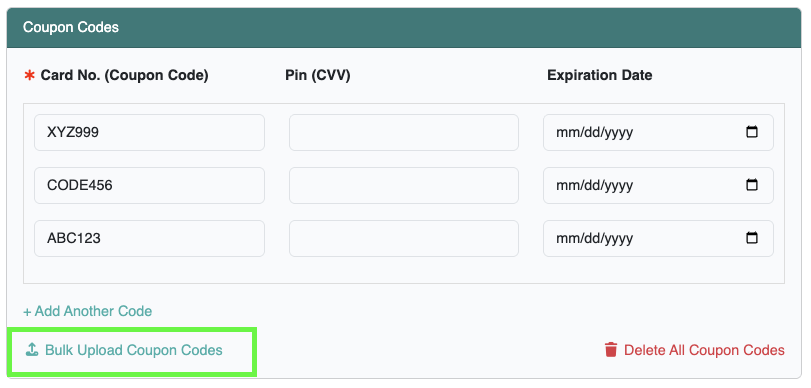
To bulk upload coupon codes, you must edit an existing Promotion and click on the Bulk Upload Coupon Codes option.

If creating a new promotion, you must follow these steps:

Step 1: Create a Promotion and save it first. Enter at least one coupon code to save the new promotion.

Step 2: Edit the promotion you just created to navigate to the promotion settings page. Then click on the Bulk Upload Coupon Codes link in the Coupon Codes section.
CSV File Formatting #

Bulk uploading coupon codes must be saved in a CSV file (Comma-Seperated Values). The CSV file must be in the following format, one coupon code per line, with each value seperated by a comma:

Coupon Code,Pin,Expiration Date (MM-DD-YYYY)

* Coupon code is required. Pin and expiration date are optional
* Bulk uploading will delete all unused coupon codes you’ve already entered into the promotion

Examples of Properly formatted CSV files #

The CSV file must be in the following format, as shown below.

Coupon Code, Pin, Expiration Date (Download Example CSV file)
G2K4-L9RM-7XPH,4567,01-01-2035
T8QY-W5ND-P4VA,8888,12-31-2030
R3ZX-K6TY-J9BQ,1852,06-30-2032

Coupon Code Only (Download Example CSV file)
G2K4-L9RM-7XPH,,
T8QY-W5ND-P4VA,,
R3ZX-K6TY-J9BQ,,

Coupon Code, Pin (Download Example CSV file)
G2K4-L9RM-7XPH,4567,
T8QY-W5ND-P4VA,8888,
R3ZX-K6TY-J9BQ,1852,

Coupon Code, Expiration Date (Download Example CSV file)
G2K4-L9RM-7XPH,,01-01-2035
T8QY-W5ND-P4VA,,12-31-2030
R3ZX-K6TY-J9BQ,,06-30-2032

*Important Note: If you are exporting your CSV from Excel or Numbers, after saving the exported CSV file, make sure to view the CSV file in a standard text editor to verify no strange or extra characters were added during the export.

Windows: You can open the CSV file with the Notepad app
Mac: You can open the CSV file with the Textedit app

If you find any problems, you can use the build-in Find & Replace feature to find the incorrect character(s) and replace or remove them with the correct character(s).

Table of Contents
  • CSV File Formatting
  • Examples of Properly formatted CSV files

© 2026 ReviewScanGo

  • Help Center