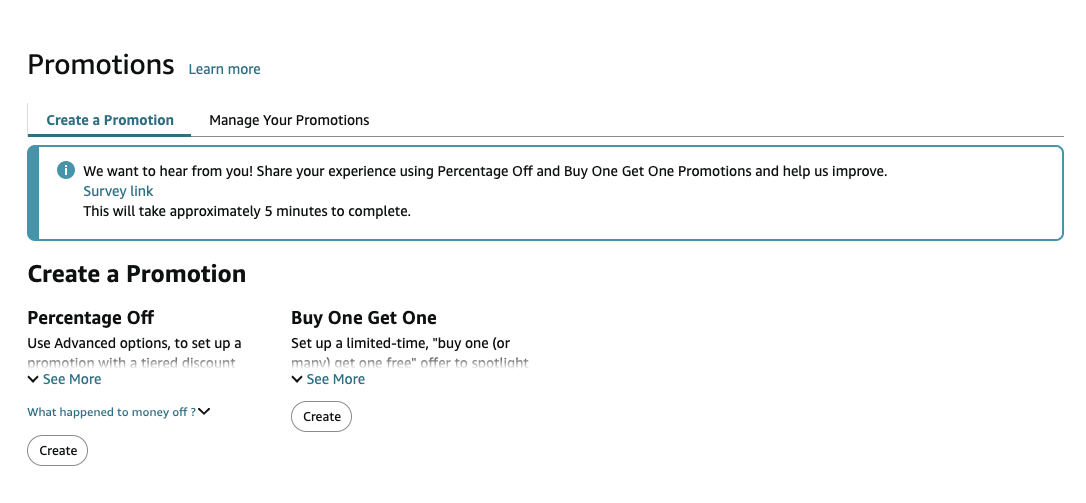
Log in to Seller Central and navigate to Avertising > Promotions and on the Percentage Off option, click Create.
Step 1: Set the Promotion Conditions #
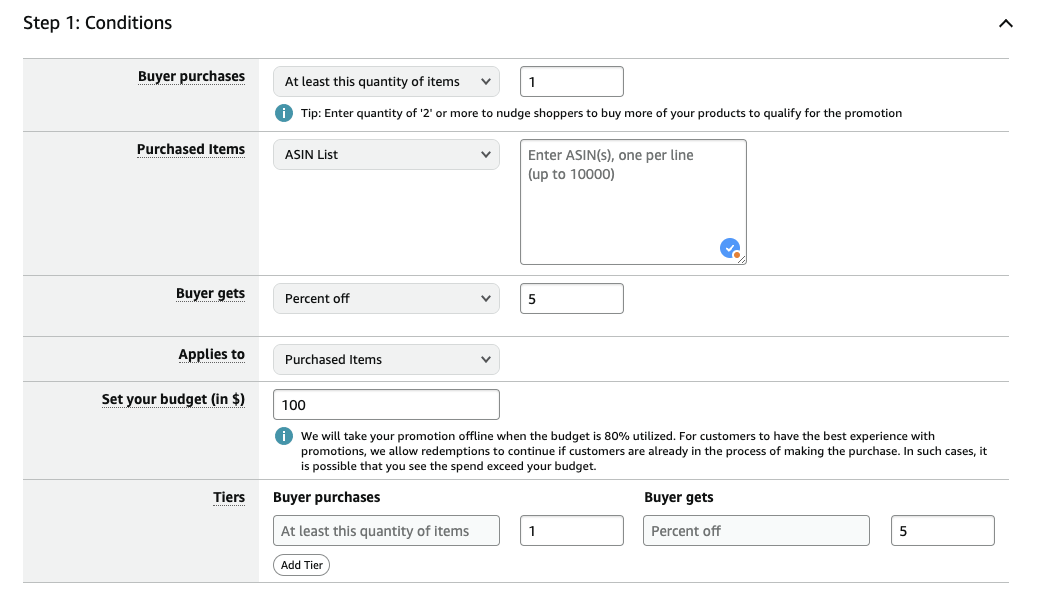
Buyer Purchases: Set how many items the shopper must purchase in order to claim the promotion. We recommend setting this to 1
Purchased Items: Choose which product or products this promotion applies to
Buyer Gets: Set the discount the shopper will get. We recommend at least 5% off
Applies To: We recommend setting this to Purchased Items
Set Your Budget: Set your budget
Tiers: Set these to the match the previous values you’ve set above
Step 2: Set the Promotion Schedule: #

Start Date: Choose the date and time for the promotion to start
End Date Choose the date and time for the promotion to end
Step 3: Set Additional Settings #
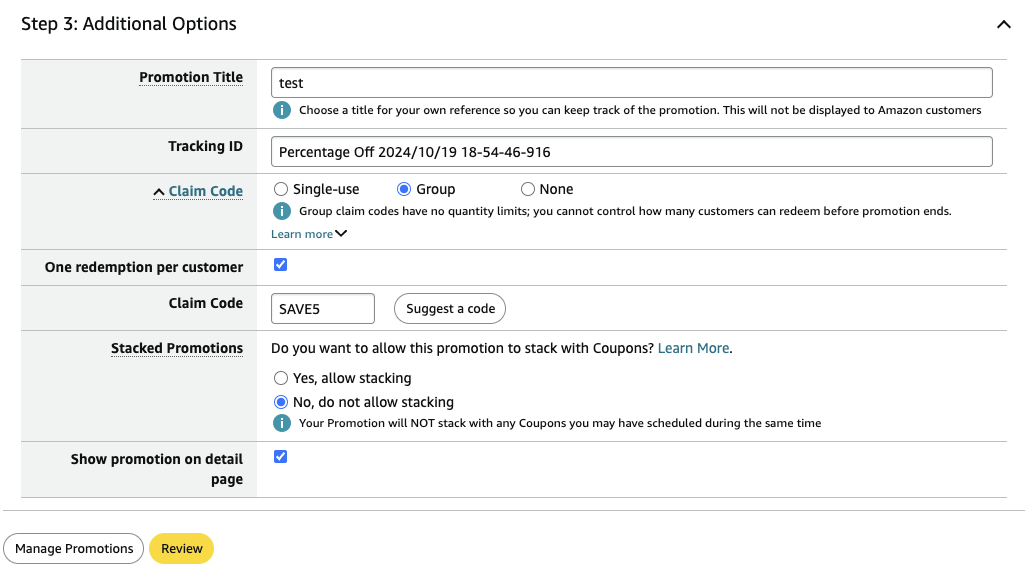
Promotion Title: Give your promotion a name
Tracking ID: Leave this as default
Claim Code: We recommend setting this to Single-Use or Group. Choose Single-Use if you want each shopper to get their own promo code – you will have to generate a list of codes on the next step. Choose Group if all shoppers will use the same promo code.
One Redemption per customer: *IMPORTANT* Make sure this is checkmarked
Claim Code: If set to Group, enter the promo code the shoppers will use to claim this promotion
Stacked Promotions: Choose if you want to allow shoppers to stack additional discounts with this promotions
Show promotion on detail page: Choose if you want this promotion displayed on your product detail page
Step 4: Review Promotion #
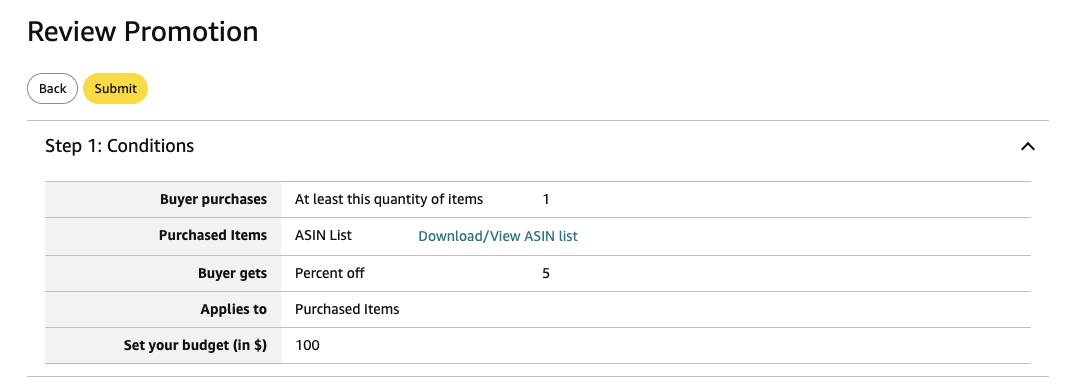
Review the promotion settings and click Submit
Optional: Generating Promo Codes #
If you chose Single-Use, you’ll need to generate the unique claim codes for the promotion. Each shopper will get their own unique code to claim your promotion.
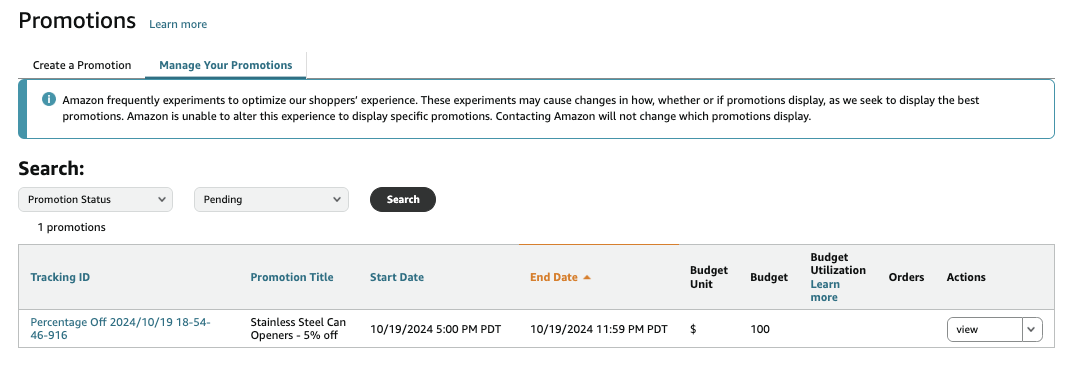
Step 1: Click on Manage Your Promotions. If you don’t see your newly created promotion, choose Pending from the drop down menu and click Search.
Step 2: Under Actions, click View
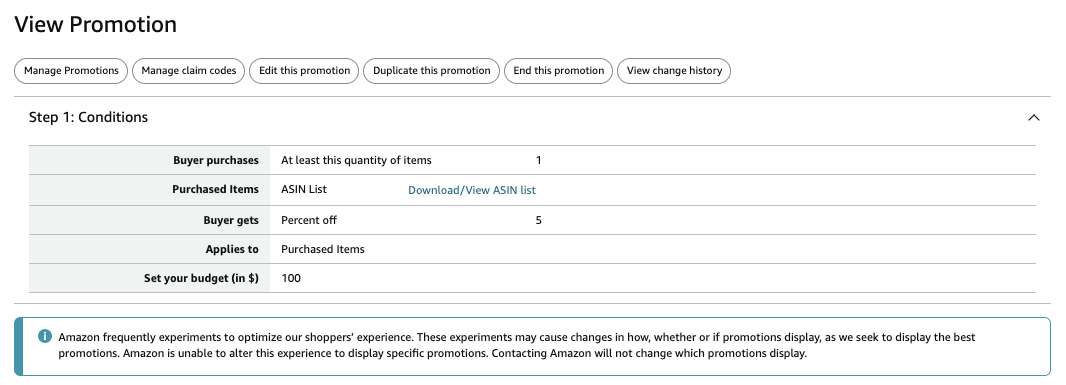
Step 3: Click on Manage Claim Codes.
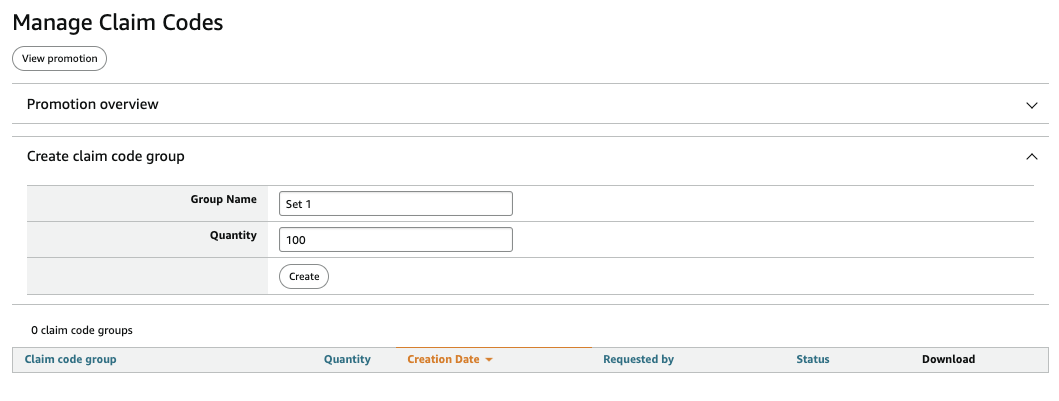
Group Name: Give this set of claim codes a name
Quantity: Choose how many codes you’d like to generate
Click Create
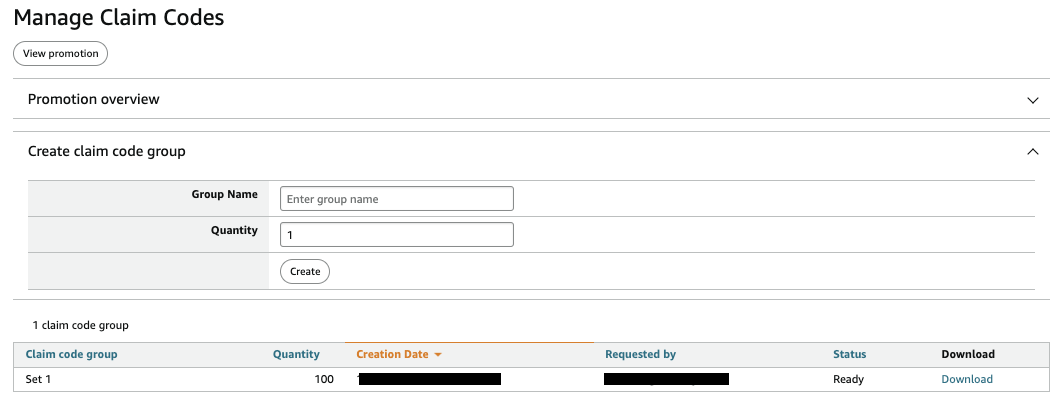
Click Download and save the list of generated codes.
Enter the codes in your promotion on ReviewScanGo. If you run out of codes, you can generate more codes on Amazon by following these steps and add them to your promotion at any time.