Skip to content
ReviewScanGo
  • Help Center
ReviewScanGo

Getting Started

9
  • Start Here: How to Launch Your First Campaign Funnel (Overview)
  • Review Compliance
  • What Is ReviewScanGo and How the Smart Funnel Works
  • What Happens After a Customer Scans the QR Code
  • Verified vs Unverified Reviews Explained
  • Product Reviews vs Seller Feedback
  • Supported Platforms
  • Supported Countries & Marketplaces
  • Supported Languages

Campaign & Smart Funnel Setup

9
  • How to Create a Campaign
    • Adding Products
    • Creating Promotions
    • Creating Campaigns
  • Testing & Activation
    • How to Test Your Campaign Funnel
    • Campaign Status Explained
    • Common Campaign Setup Mistakes
  • QR Code Management
    • Downloading & Printing QR Codes
    • Emailing or Sharing Your Campaign Link
    • Using Existing Insert Cards

Promotions & Coupon Codes

10
  • Promotion Types
    • Gift Cards
    • eGift Cards
    • Discount Code or Promo Code or Virtual Gift Card
    • Free Products
    • Digital Download
  • Coupon Code Management
    • Entering Coupon Codes
    • How to Bulk Upload Coupon Codes
  • Gift Cards & Promo Setup
    • How to Create an Amazon Promotion in Seller Central
    • Where to Get Gift Cards or Promo Codes
    • How to Buy and Process eGift Cards

QR Codes

4
  • Downloading & Printing QR Codes
  • Emailing or Sharing Your Campaign Link
  • Using Existing Insert Cards
  • How to Test Your Campaign Funnel

Insert Cards & Compliance

4
  • Where to Get Insert Cards Made
  • Using Existing Insert Cards
  • Review Compliance
  • Amazon Compliant Insert Cards

Claims Center

2
  • How the Claims Center Works
  • How to Buy and Process eGift Cards

Branding & Advanced Features

2
  • How to White Label Your Smart Funnel
  • How to Add a Meta Pixel

Account & Billing

3
  • Upgrade or Change Your Subscription Plan
  • Plan Limits Explained
  • What Happens When You Downgrade Your Plan

Troubleshooting & Support

4
  • Campaign Not Active
  • QR Code Scans But Funnel Doesn’t Load Properly
  • Running Out of Coupon Codes
  • Contact Support
View Categories

How the Claims Center Works

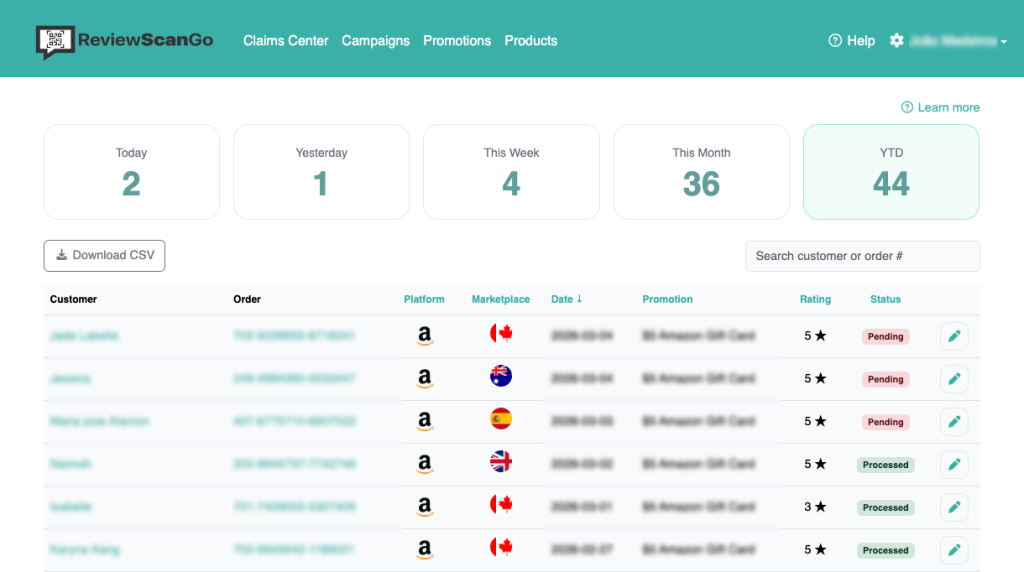
The Claims Center is your central dashboard for managing customer redemptions and tracking campaign performance.

From this page, you can review, verify, and fulfill all promotion claims submitted through your Smart Funnels.

Campaign Performance Overview #

The Claims Center also provides performance summaries and metrics so you can evaluate how your campaigns are performing.
Reviewing Customer Claims #

Within the Claims Center, you can view:

  • Customer contact details
  • Associated product and marketplace
  • Order number (if collected)
  • Customer feedback
  • Whether the customer was redirected to your product detail page

This gives you full visibility into each redemption and the customer’s funnel journey.
Verifying and Processing Claims

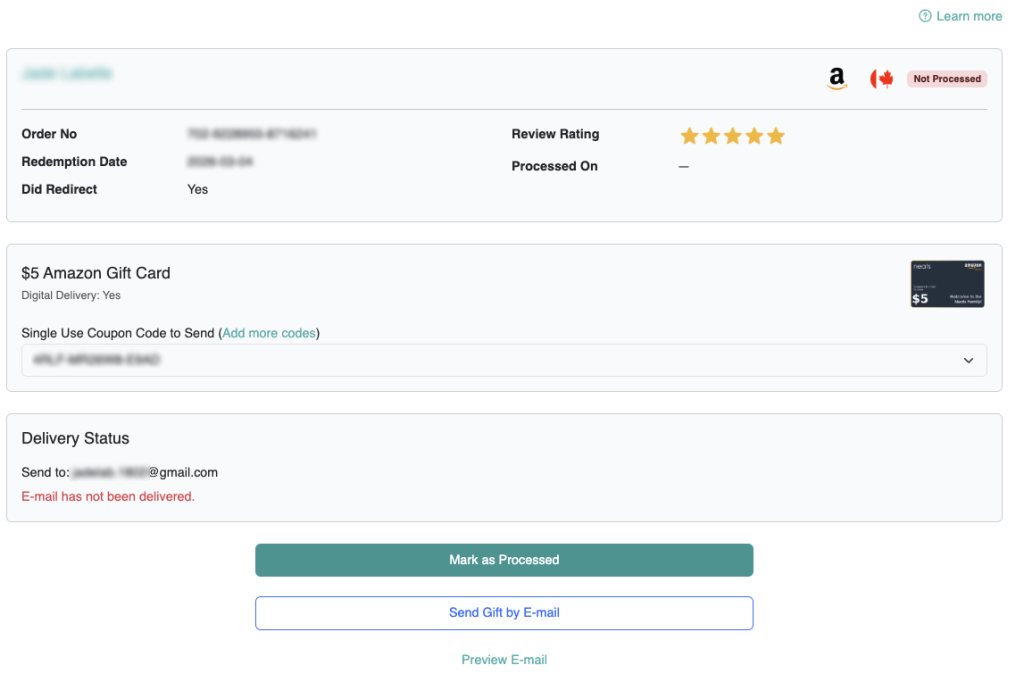
You are responsible for verifying the customer’s purchase before delivering any promotion. You can verify claims by cross referencing their order number with your Order History from your e-commerce platform.

Once verified, you can process the claim according to the promotion type.

Digital Promotions

For digital promotions:

Click the Send Gift by Email button to send the digital product or coupon code to your customers email address.

The system automatically emails the details to the customer.

After delivery, click Mark as Processed to update the claim status.

Physical Promotions

For physical promotions:

  • The customer’s mailing address will be displayed.
  • Ship the physical item directly to the customer.
  • Once fulfilled, click Mark as Processed to record completion.

After marking a claim as Processed, you can view:

  • The delivery status
  • The date it was processed
  • Details of what was delivered

If you need to make any changes, you can click the Unprocess button.

Claim Details and History #

  • Clicking a customer’s name displays their full contact information and claim history.
  • Clicking the Edit button allows you to review claim-specific details, status, and required actions.

This ensures you can track repeat customers and monitor redemption patterns.
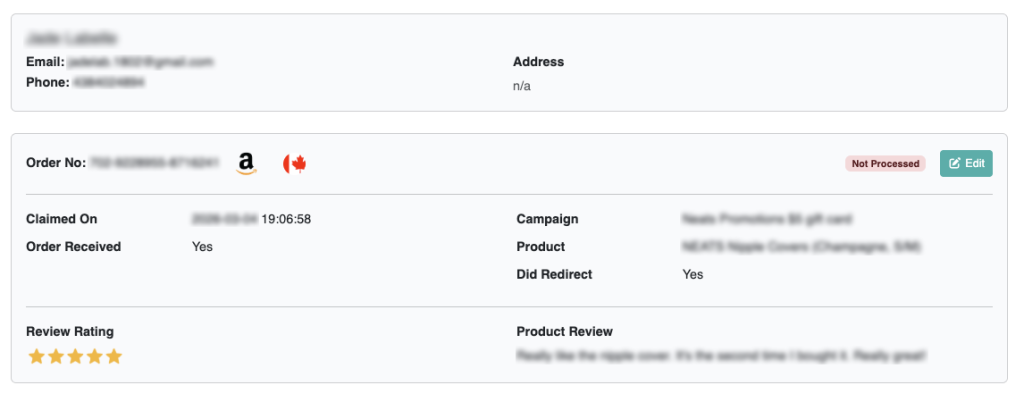
“Did Redirect” Status #

The Did Redirect field indicates whether the customer clicked the Share button and was redirected to your Amazon, eBay, Walmart, or Etsy product detail page.

This helps you measure engagement with your review request flow.
Video Tutorial

What are your Feelings

  • Happy
  • Normal
  • Sad
Table of Contents
  • Campaign Performance Overview
  • Reviewing Customer Claims
  • Claim Details and History
  • “Did Redirect” Status

© 2026 ReviewScanGo

  • Help Center