Skip to content
ReviewScanGo
  • Help Center
ReviewScanGo

Getting Started

9
  • Start Here: How to Launch Your First Campaign Funnel (Overview)
  • Review Compliance
  • What Is ReviewScanGo and How the Smart Funnel Works
  • What Happens After a Customer Scans the QR Code
  • Verified vs Unverified Reviews Explained
  • Product Reviews vs Seller Feedback
  • Supported Platforms
  • Supported Countries & Marketplaces
  • Supported Languages

Campaign & Smart Funnel Setup

9
  • How to Create a Campaign
    • Adding Products
    • Creating Promotions
    • Creating Campaigns
  • Testing & Activation
    • How to Test Your Campaign Funnel
    • Campaign Status Explained
    • Common Campaign Setup Mistakes
  • QR Code Management
    • Downloading & Printing QR Codes
    • Emailing or Sharing Your Campaign Link
    • Using Existing Insert Cards

Promotions & Coupon Codes

10
  • Promotion Types
    • Gift Cards
    • eGift Cards
    • Discount Code or Promo Code or Virtual Gift Card
    • Free Products
    • Digital Download
  • Coupon Code Management
    • Entering Coupon Codes
    • How to Bulk Upload Coupon Codes
  • Gift Cards & Promo Setup
    • How to Create an Amazon Promotion in Seller Central
    • Where to Get Gift Cards or Promo Codes
    • How to Buy and Process eGift Cards

QR Codes

4
  • Downloading & Printing QR Codes
  • Emailing or Sharing Your Campaign Link
  • Using Existing Insert Cards
  • How to Test Your Campaign Funnel

Insert Cards & Compliance

4
  • Where to Get Insert Cards Made
  • Using Existing Insert Cards
  • Review Compliance
  • Amazon Compliant Insert Cards

Claims Center

2
  • How the Claims Center Works
  • How to Buy and Process eGift Cards

Branding & Advanced Features

2
  • How to White Label Your Smart Funnel
  • How to Add a Meta Pixel

Account & Billing

3
  • Upgrade or Change Your Subscription Plan
  • Plan Limits Explained
  • What Happens When You Downgrade Your Plan

Troubleshooting & Support

4
  • Campaign Not Active
  • QR Code Scans But Funnel Doesn’t Load Properly
  • Running Out of Coupon Codes
  • Contact Support
View Categories

Using Existing Insert Cards

If you already have printed insert cards with a QR code, you may continue using them by redirecting the existing QR code to your new campaign funnel.

This allows you to avoid reprinting inventory while still using ReviewScanGo.

How to Redirect Your Existing QR Code #

  1. Go to Campaigns in your dashboard.
  2. Click Edit on the campaign you want to use.
  3. Click on the QR Code image.
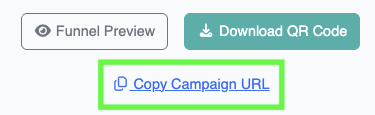
  4. Click the Copy Campaign URL link

This URL is your unique campaign funnel link.

Update Your QR Code Destination #

Update your existing QR code so that it redirects to the copied campaign URL.

How you update the QR code depends on how it was originally created:

  • If it was generated using a dynamic QR code service, update the destination URL inside that service.
  • If it was a static QR code, you may need to create a redirect from the original URL to your new campaign link.

Once redirected, customers scanning your existing insert card will be taken directly to your active ReviewScanGo Smart Funnel.

What are your Feelings

  • Happy
  • Normal
  • Sad
Table of Contents
  • How to Redirect Your Existing QR Code
  • Update Your QR Code Destination

© 2026 ReviewScanGo

  • Help Center