Promotions allow you to offer incentives such as discounts, gift cards, free products, or digital downloads as part of your Smart Funnel strategy.
Each promotion can be linked to multiple campaigns, giving you flexibility to run different marketing strategies across products.
Important: ReviewScanGo does not provide coupons, promo codes, gift cards, warranties, or free gift items. You are responsible for creating and sourcing the promotion you intend to offer.
If you need help setting up offers, see:
Learn how to get coupons, promo codes, gift cards, and other offers.
Step 1: Navigate to Promotions #
From your dashboard, select Promotions from the main menu.
Step 2: Create a New Promotion #
Click the + Promotion button and complete the required fields below.
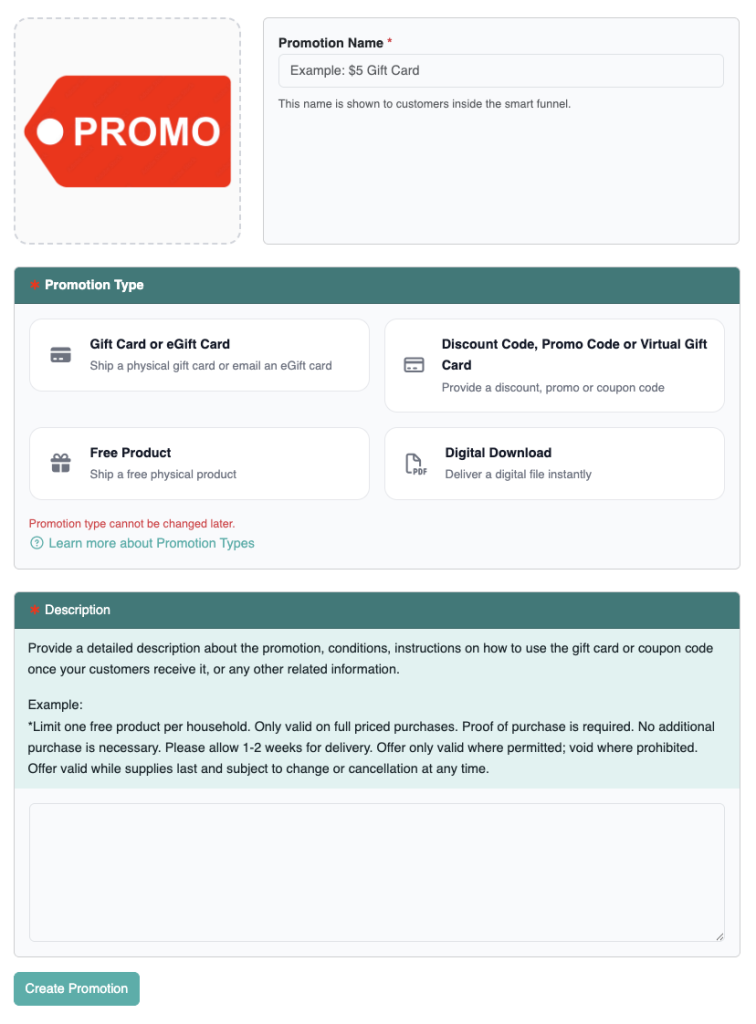
Promotion Name #
Enter a name for your promotion. This will be displayed inside the Smart Funnel.
Promotion Image #
Upload a high-quality image that represents the promotion. This image will appear inside the funnel and helps customers understand what they are redeeming.
Promotion Type #
Select the type of promotion you are offering.
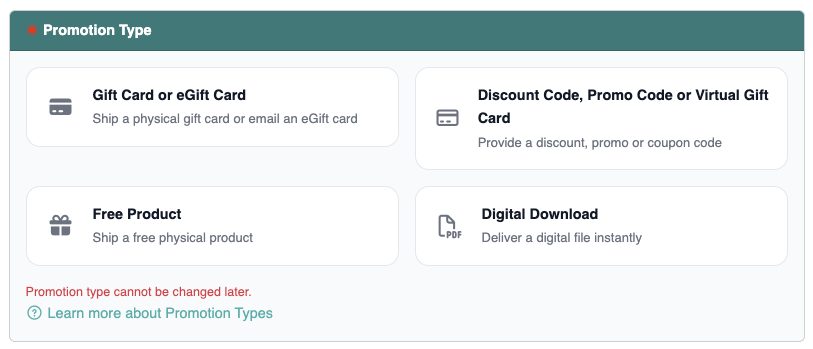
For a full breakdown of promotion types, click More Info.
Description #
Provide a clear description of the promotion.
Include:
- Terms and conditions
- Instructions for redeeming a coupon code or gift card
- Any restrictions or expiration details
This description will appear inside the Smart Funnel and in the confirmation email sent to customers after they complete the funnel.
Code Type #
Choose how codes will be delivered:
- Same code for every customer
- Unique code for each customer
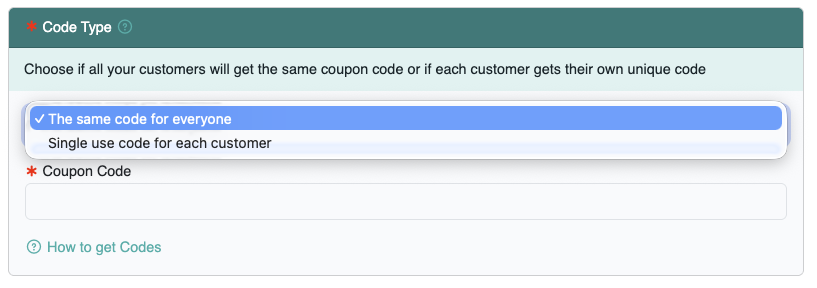
Same Code for Every Customer #
Choose this option if every customer will use the same discount code to redeem the offer. For example, if you have a $5 off coupon and everyone will use the same discount code “SAVE5”, then choose Same Code for Every Customer and enter “SAVE5” in the Coupon Code field on the promotion.
Every Customer Will Get a Unique Code #
Choose this option if everyone customer will receive a different code in order to redeem the offer such as a single use Amazon Promotion. You can also choose this option if you’ve purchased physical gift cards and you’d like to automatically send each customer the card details through our system instead of mailing the card. Enter your list of codes or the gift card details into the Coupon Codes List for the promotion.
Coupon Code #
If all customers will use the same code, enter the shared coupon code here. ie: SAVE5
Coupon Codes List #
If each customer receives a unique code, enter your list of codes here.
For physical or digital gift cards, include:
- Card number
- PIN (if applicable)
- Expiration date (if applicable)
For Amazon promotions, this will typically be a single-use claim code.
Each time a customer redeems a promotion:
- One code from the list is delivered
- That code is removed from the available pool
This prevents duplicate usage.
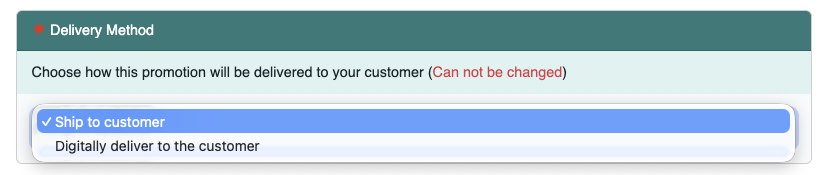
Delivery Method #
Select how the promotion will be fulfilled:
- Digital delivery (coupon code, gift card details, file download)
- Physical shipment (free product or physical gift)
Approval Method #
Choose how redemptions are processed:
- Automatic approval — the promotion is delivered on screen and via email immediately after funnel completion. Digital promotions only.
- Manual approval — you must review and approve each claim before delivery
If you choose manual approval, customers will not receive their promotion until you approve the claim.
Step 3: Save the Promotion #
After completing all required fields, click Submit to save your promotion.
Your promotion can now be linked to one or more campaigns.
Video Tutorial #
For a full walkthrough of creating and configuring promotions, watch the video tutorial below.