
Before creating a campaign, you must first add the products you sell.
ReviewScanGo supports products sold on:
- Amazon
- eBay
- Walmart
- Etsy
- Shopify
- WordPress
- Custom webstores
Once added, a product can be linked to multiple campaigns, allowing you to run different marketing strategies for the same item.
Important: If you sell multiple products or product variations, each variation must be added separately.
Step 1: Navigate to the Products Page #
From your dashboard, select Products from the main menu.
Step 2: Create a New Product #
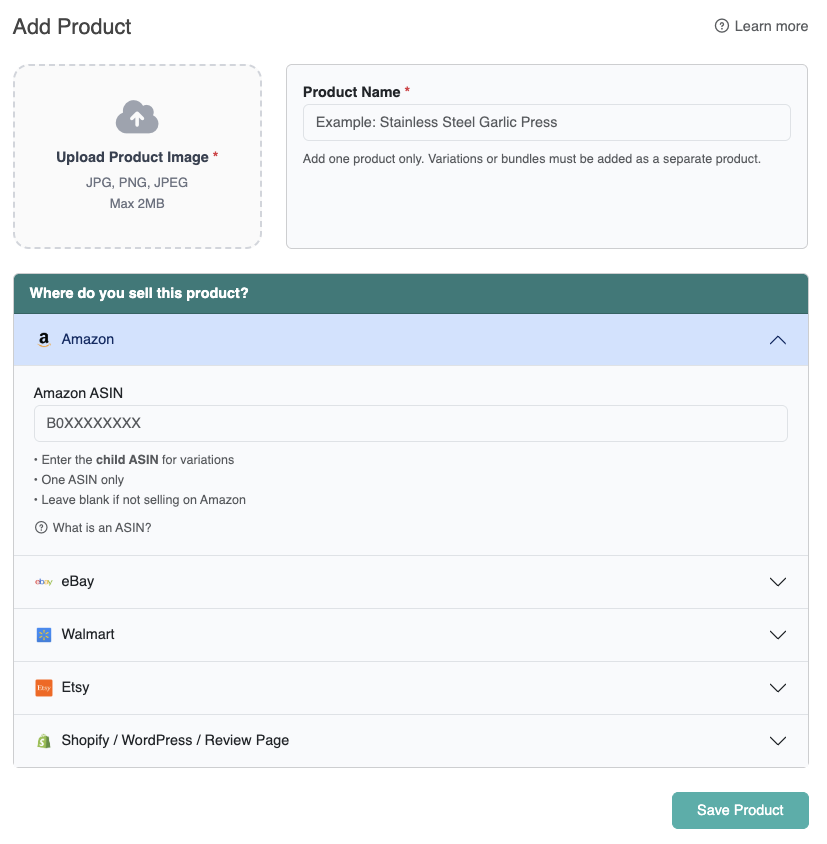
Click the + Product button and complete the required fields below.
Product Name #
Enter the name of your product. This name will be displayed inside your Smart Funnel.
Amazon ASIN #
Enter the product’s ASIN (Amazon Standard Identification Number).
- ASINs are 10 characters long
- Most ASINs begin with “B0”
- This ensures customers are directed to the correct Amazon review page
If the product is part of a variation family, you must enter the child ASIN, not the parent ASIN. Only one ASIN should be entered per product.
eBay Item Number #
Enter the 12-digit item number found on your eBay listing. View Example
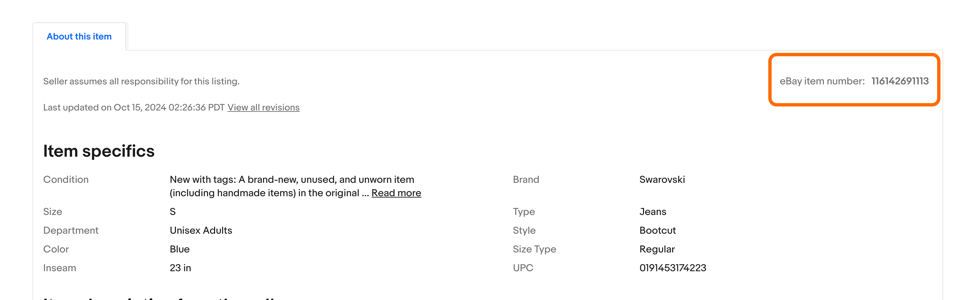
This number ensures customers are redirected to the correct eBay feedback page.
Walmart Product ID #
Enter the 9-digit product ID from your Walmart listing.
You can find the Item ID by viewing the product page on Walmart.com and locating the 9-digit number at the end of the product URL following the forward slash (/). Learn More
This ID is used to route customers to the correct Walmart product review page.
Etsy Listing ID #
Enter the 10-digit listing ID from your Etsy product URL. View Example
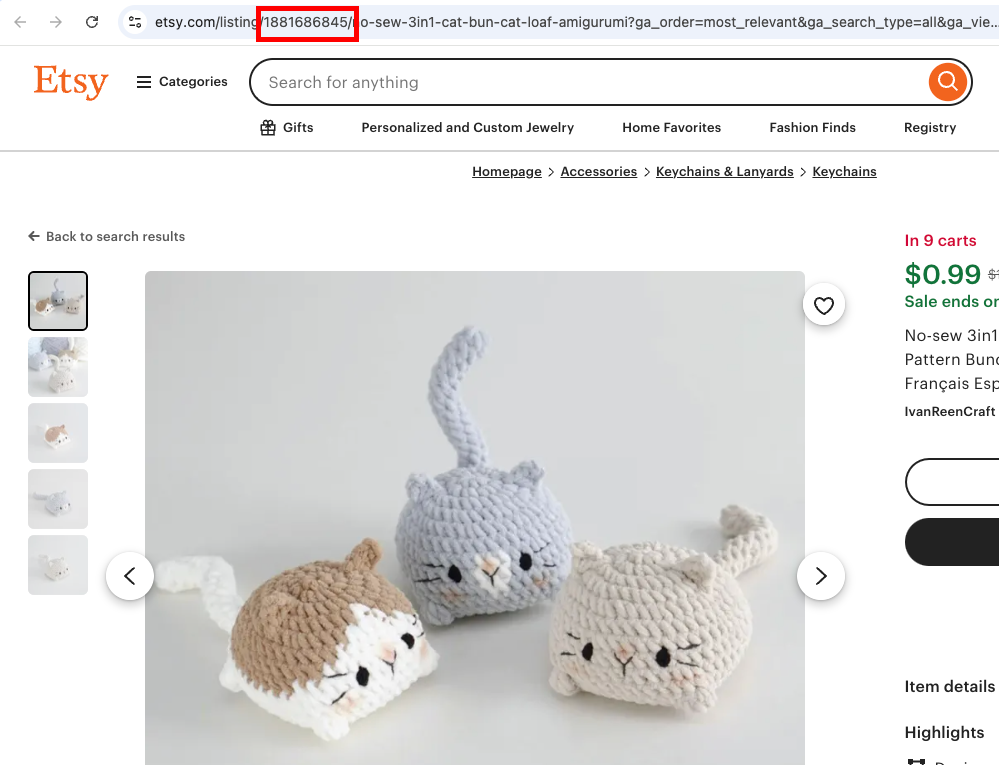
The numeric portion at the end of the listing URL is the listind ID: https://www.etsy.com/listing/<listingid>
Shopify, WordPress, or Custom Review Page URL #
If you sell on Shopify, WordPress, or a custom webstore, enter the direct product page URL or review page URL.
Customers will be redirected to this page when prompted to leave feedback.
Product Image #
Upload a high-quality image of the product. This image will be displayed inside the Smart Funnel and helps customers confirm they are reviewing the correct item.
Step 3: Save the Product #
After completing all required fields, click Submit to save your product.
Your product can now be linked to one or more campaigns.
Video Tutorial #
For a full walkthrough, watch the video tutorial below.